Your admin profile
Change your own name, photo and password. Email stays read-only.
My profile is the only place where you edit yourself. Owners still manage other people in Users and access.
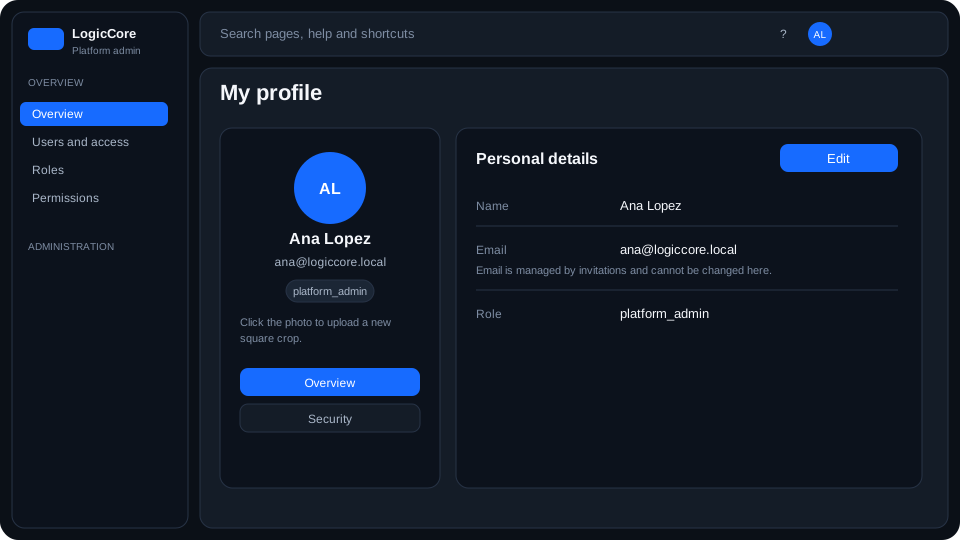
What each field means
Photo
Shown in the header avatar. Upload a square crop (JPG). Applying the crop saves immediately — it does not wait for Save changes on the name form. Removing the photo falls back to initials from your name or email.
Display name
How you appear in staff lists, audit rows and the account menu. Use Edit profile, then Save changes.
Read-only sign-in address. Changing it would affect invitations and sessions, so it stays with operators in Users and access.
Password
Security tab: current password plus the new one twice. Minimum 10 characters. A successful change does not sign you out of other devices.
Steps
- Open the account menu → My profile.
- On Overview, click the photo to upload and crop.
- Edit profile to change display name, then Save changes.
- Switch to Security to change the password.