Create and assign roles
A role is a named bundle of permissions. Staff pick a role slug when you invite them.
Roles sit between people and permissions. You do not grant capabilities one by one on every user: you compose a role, then assign its slug on the membership.
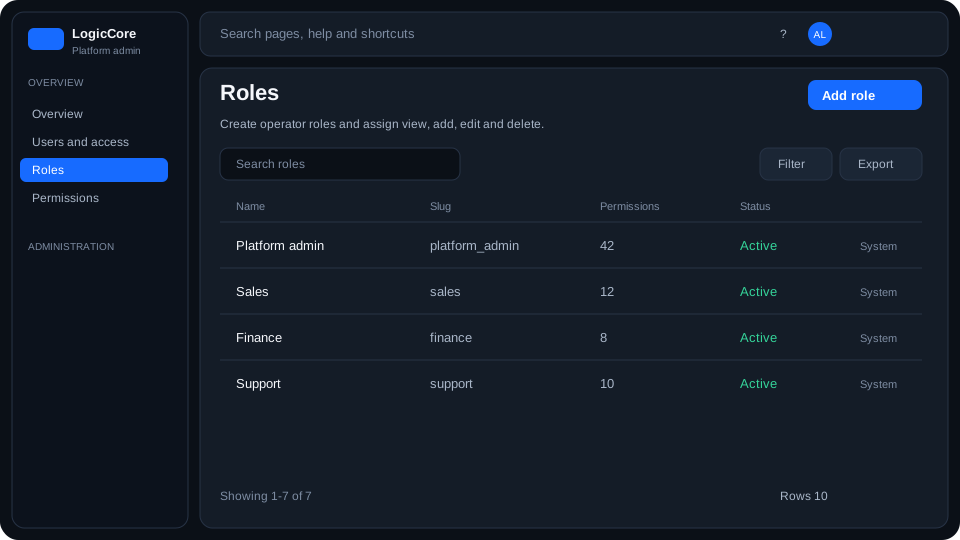
What each column means
Name
Human label in the UI (for example “Project manager”). Shown in staff lists and the invite wizard.
Slug
Stable machine id in snake_case (sales, project_manager, platform_admin). APIs and memberships store this string, not the display name.
Permissions
Count of catalog keys granted by the role. In the wizard each resource has view / add / edit / delete. That is the matrix you tick.
System roles
Seeded at install: platform_admin, sales, project_manager, finance, support, client_owner, client_member. You can still edit or delete them; there is no hard lock. Prefer cloning a system role if you need a variant you can change safely.
Add or edit a role
- Open Users and access → Roles.
- Add role, or row actions → Edit.
- Basics: name, slug and whether the role is active.
- Permissions: tick view / add / edit / delete per resource.
- Save. The slug appears in Invite user and Edit staff role.